
xLight Control: run your light show from your phone
The Light Shows tile is now xLight Control — find your xLights and FPP controllers on your own Wi-Fi and start, stop, and drive the show from your phone.
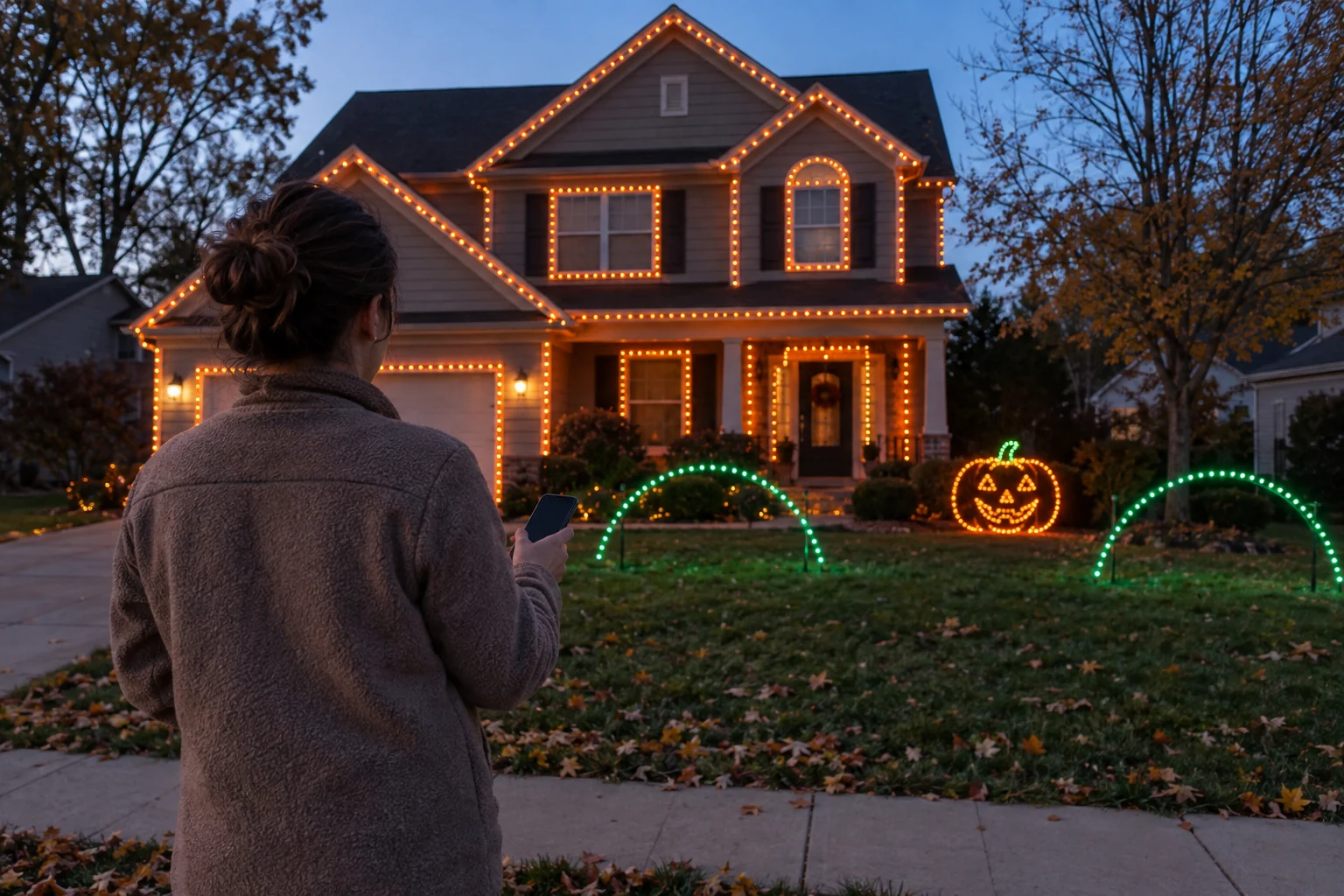
The laptop by the front door was always the weak link.
If you run a synchronized RGB display — the kind where the whole yard pulses to music and cars slow down to watch — you know the drill. The show lives on a controller. The controller answers to xLights or Falcon Player (FPP). And the thing that actually starts and stops it is usually a laptop wedged on a table by the door, screen dimmed, that nobody's allowed to touch. Want to kill the show because a neighbor's kid is asleep? Walk inside, wake the laptop, find the window, click stop.
That's the piece we wanted gone. So we rebuilt it.
What xLight Control does
xLight Control finds your show controllers on your local network and lets you run them from your phone. That's the whole pitch, and it's a bigger deal than it sounds.
Open the tile and the app looks at the Wi-Fi you're already on, works out the subnet it lives on, and scans it for xLights and FPP devices. You don't type an IP address. You don't go digging through your router's admin page for the DHCP lease table. You don't keep a sticky note on the monitor that says `192.168.1.47`. The app derives the network range on its own and hands you back a list of the controllers it found.
From there you're driving the actual show:
- Start the sequence.
- Stop it.
- Do both from the couch, the driveway, or the sidewalk while you watch the display the way your visitors will.
That last part matters more than the convenience. The best seat for tuning a light show is not behind the controller — it's out front, standing where the trick-or-treaters stand. xLight Control means the controls are wherever you are, not chained to a table by the door.
Why we renamed it
This used to be the Light Shows tile. Fair name, vague name. It sounded like a gallery of other people's displays, or a how-to, or a mood board. It didn't tell you it would reach out and touch your own hardware.
So it's xLight Control now. The name says what it is: control, for the xLights and FPP crowd. If you've got a Falcon or a Pi running FPP in a weatherproof box on the porch, this tile talks to it. If you don't, this one probably isn't for you — and that's exactly what the old name failed to signal.
Renaming a tile is a small thing. But we'd rather the label be honest than clever.
It stays on your network
Here's the part we want to be plain about, because it's the part that trips people up on first launch.
xLight Control needs local network permission. The first time you open it, your phone will ask whether the FrightMaps app can find and connect to devices on your local network. Say yes, or the scan comes back empty and the tile can't do its job.
That permission is doing real work. To discover a controller sitting at some address on your Wi-Fi, the app has to be allowed to look at your Wi-Fi. There's no cloud middleman here, no relay server your show data bounces through. Your phone and your controller are on the same network, and xLight Control talks to the controller directly across it. The prompt is your phone being careful on your behalf — worth a tap of yes, and worth understanding why it's asking.
If the list comes up empty, the usual culprit is simple: your phone is on a guest network or a 5GHz band that can't see the controller sitting on the main 2.4GHz LAN. Get both on the same network and rescan. Nine times out of ten, that's it.
Who this is for
This is a tool for the yard-display people. The ones with thousands of pixels mapped in xLights, a soundtrack cut to the frame, and a FPP box that's been running since the first cold night of the season. You already did the hard part. You sequenced the show, wired the props, tuned the timing.
xLight Control is the last mile — the difference between a show you have to go babysit and a show you actually run from your hand. Start it when the first group comes up the walk. Stop it when the street goes quiet. Restart it for the family that showed up late and deserves the full thing. All without breaking your spot on the porch.
How to start
If you're already displaying your haunt or your yard on FrightMaps, this is live in the app right now. Open FrightMaps, find the xLight Control tile where Light Shows used to be, and launch it. Grant local network access when your phone asks. Give it a few seconds to scan, and your xLights and FPP controllers should show up ready to drive.
Not on the map yet? Put your display where the crowds are looking first — add it at frightmaps.com and get listed on the directory — then point xLight Control at your rig and run the whole thing from your phone. The laptop by the door has done enough seasons. Let it retire.
Find real haunts near you 🎃
Discover thousands of haunted houses and Halloween displays on FrightMaps — free, with directions and a save-a-route planner.