
Your skeleton won't connect: the seven fixes, in order
Seven connection checks for the 6.5-foot Ultra Skelly or 7-foot Lethal Lily: Bluetooth mode, the other app, speaker pairing, permissions and your plan.
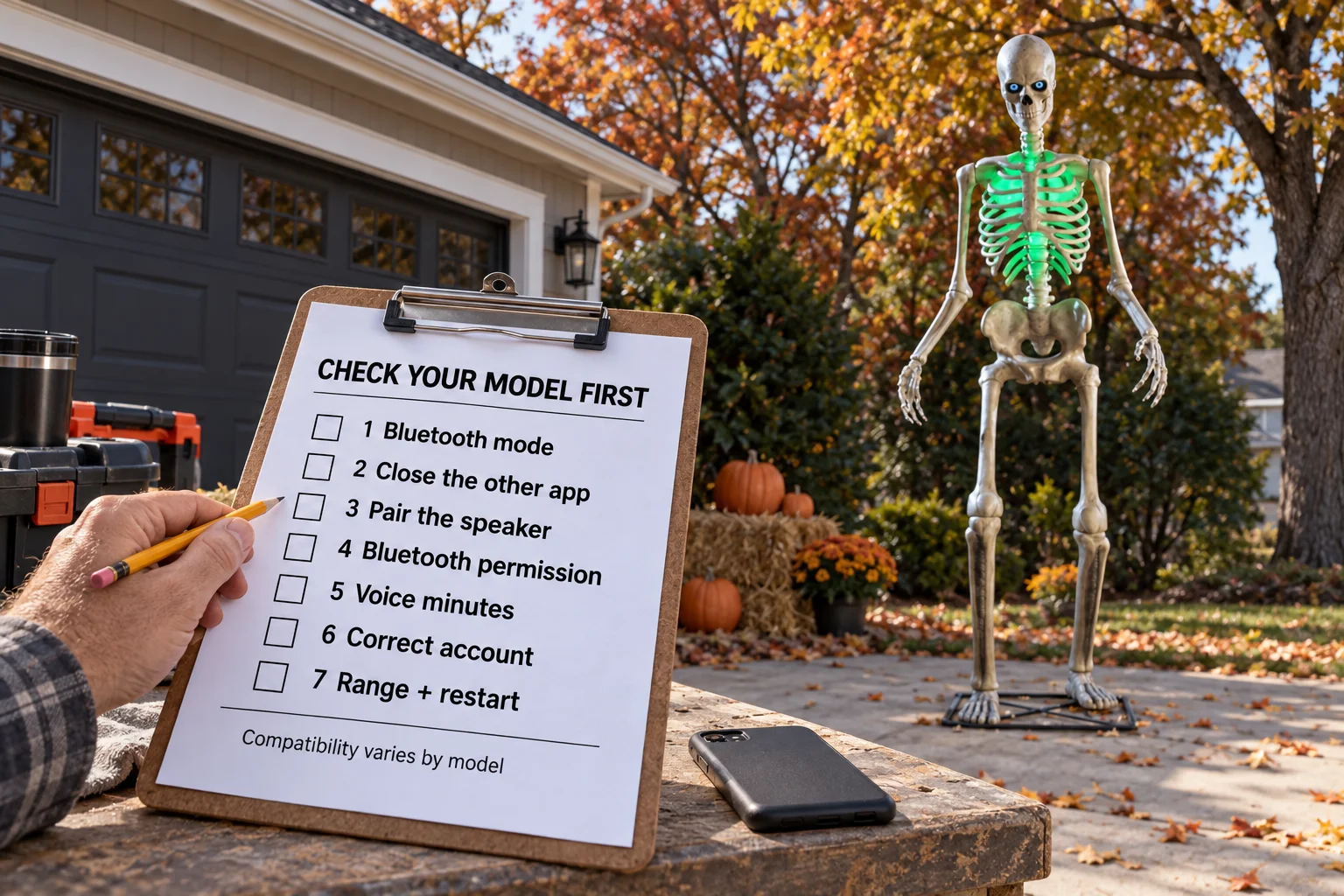
Most "my skeleton won't connect" emails come down to one of seven things, and a broken skeleton is almost never one of them. Work down this list and stop when it works.
First, check the model. These fixes cover the 6.5-foot Ultra Skelly, model 25SV24690, using the SVI Ultra Skelly v2 profile, and the 7-foot Lethal Lily. The 2026 12-foot App-Controlled Skelly, model 26SV25555, is a different product whose FrightMaps compatibility has not yet been verified. The classic non-app-controlled 12-foot Skelly has no Bluetooth control link for these steps.
One thing to know first
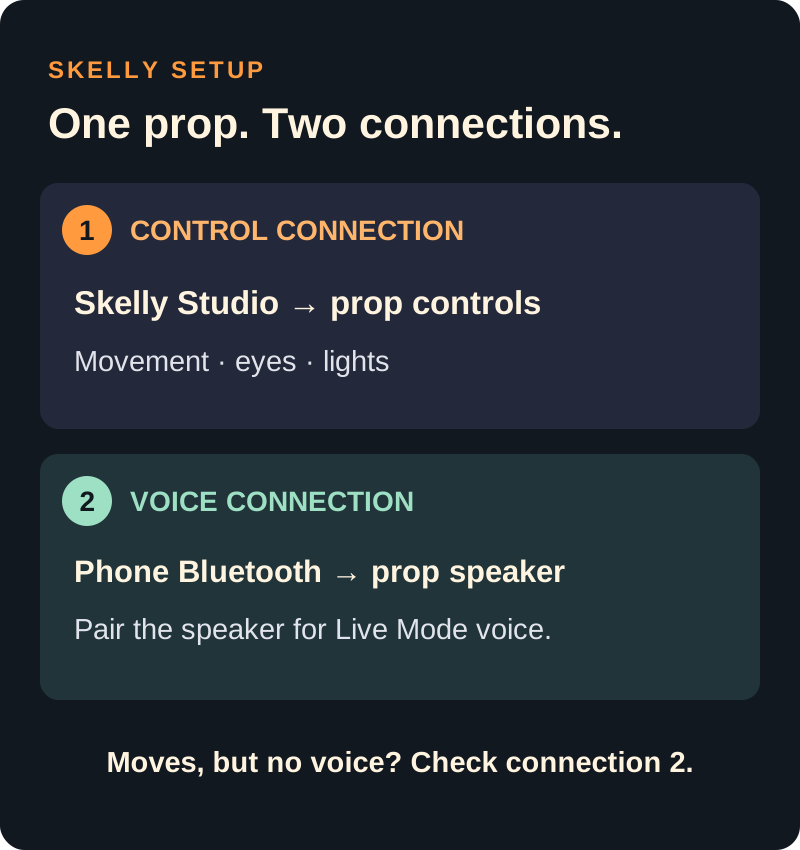
Your skeleton is two Bluetooth devices, not one.
The first is the control link. FrightMaps uses it for movement, lights, eyes, audio files and the live jaw sync. The second is a plain Bluetooth speaker, which your phone pairs to in Settings like any other speaker. In Live Mode the voice is generated on your phone and played out through that speaker, while the control link runs the jaw.
1. The skeleton isn't in Bluetooth mode
The prop has to be switched to Bluetooth mode. In Try Me or sensor mode there is no control link for the app to find, so the scan comes back empty.
Flip it to Bluetooth mode, then open More > Skelly Studio. It scans on its own; tap Retry to scan again. It should show up within seconds.
2. The skeleton's own app still has the connection
Only one app can hold the control link at a time. If the skeleton's own app is open, even sitting in the background, FrightMaps can't connect.
Fully close the other app (swipe it away, don't just switch apps), then scan again.
3. Movements work but there's no voice
This is the question we get most. Arms, head, eyes and lights all respond, but when you ask the skeleton something the voice comes out of your phone and the jaw doesn't move.
That means the control link is fine and the speaker isn't paired. When you turn on Live Mode the app tells you what to look for: the skeleton's Bluetooth name with "(Live)" on the end, for example "Ultra Skelly v2(Live)". Open your phone's Bluetooth settings, connect to that device, and try again. The voice moves to the skeleton and the jaw follows it.
Movement, eyes and lights work either way. Only the voice needs the second pairing.
4. Bluetooth permission is off for FrightMaps
If the scan still shows nothing, check the phone.
Bluetooth itself has to be on. The app will tell you "Turn on Bluetooth" if it isn't. Separately, FrightMaps needs permission to use it. On iPhone, check the Bluetooth permission for FrightMaps in Settings. On Android the app asks the first time you scan, and on some Android versions it also asks for Location, because the system needs it for Bluetooth scanning. Deny either one and the app shows "Bluetooth permissions denied"; allow them in the app's permissions under Settings.
5. You bought Pro but have no voice minutes
This isn't a connection problem, but it lands in the same inbox.
Base FrightMaps Pro ($7.99/mo) unlocks Pro features across the app. It does not include voice minutes. Voice minutes come from the Haunted Duo plans:
- Haunted Duo, $7.99/mo: 15 minutes
- Haunted Duo Plus, $12.99/mo: 35 minutes
- Haunted Duo Ultimate, $19.99/mo: 70 minutes
The free plan includes 2 minutes so you can hear it work before paying. Expressive Mode bills at 2x and is only offered on Duo Plus and Ultimate, so 70 minutes of Ultimate is 35 minutes in Expressive. If you bought base Pro because you wanted the skeleton to talk, that's on us for not making it clearer. The fix is a Duo plan.
6. You bought while signed in as a guest
FrightMaps lets you use the app without an account. If you subscribed while in that guest state, the purchase landed on the guest account. Sign in with Google, Apple or email and you're on a different account that doesn't have it.
Fix: sign in, then go to More > Restore Purchases. It pulls the subscription over from the app store to the account you're signed in to. Do it while signed in to the same App Store or Google Play account you bought with.
7. Too far away, or the skeleton is stuck
For the first connection, stand next to the skeleton. Once it's connected you can back off. If you walk out of range the app drops the link and keeps retrying on its own while you're on the Skelly Studio screen. Live Mode switches off when the link drops, so turn it back on once it reconnects.
If everything above checks out and it still won't connect, power-cycle the skeleton. Switch it off, wait a few seconds, switch it back on in Bluetooth mode, then scan.
Still stuck? Send the diagnostics
If you've been through all seven, don't guess. In the app go to More > Contact support. It opens an email to us with a diagnostics file already attached: your app version, phone OS, account type (including whether you're signed in as a guest), whether Pro shows on the account, and a log of recent activity.
Add two lines: which of the seven you've checked, and what the app shows when you scan. With that file we can usually answer on the first reply.
How to start
If you're new to this, the feature overview is at Give Your Ultra Skelly Something to Say and the feature page is at AI Skelly. Download FrightMaps for iOS or Android, put the skeleton in Bluetooth mode, close the other app, and open More > Skelly Studio.
Give your skeleton a voice 💀
Skelly Studio is in the free FrightMaps app. Pair your Ultra Skelly or Lethal Lily over Bluetooth, try the AI voice with the free minutes, and pick a Duo plan when you want it to talk all night.